 LiveEcho by KalisPro
End credits for your stream in OBS
At the end of the stream LiveEcho rolls credits like at the cinema: your viewers, subscribers, followers and the gifts you received, with music behind them. You add them to OBS once, as a browser source.
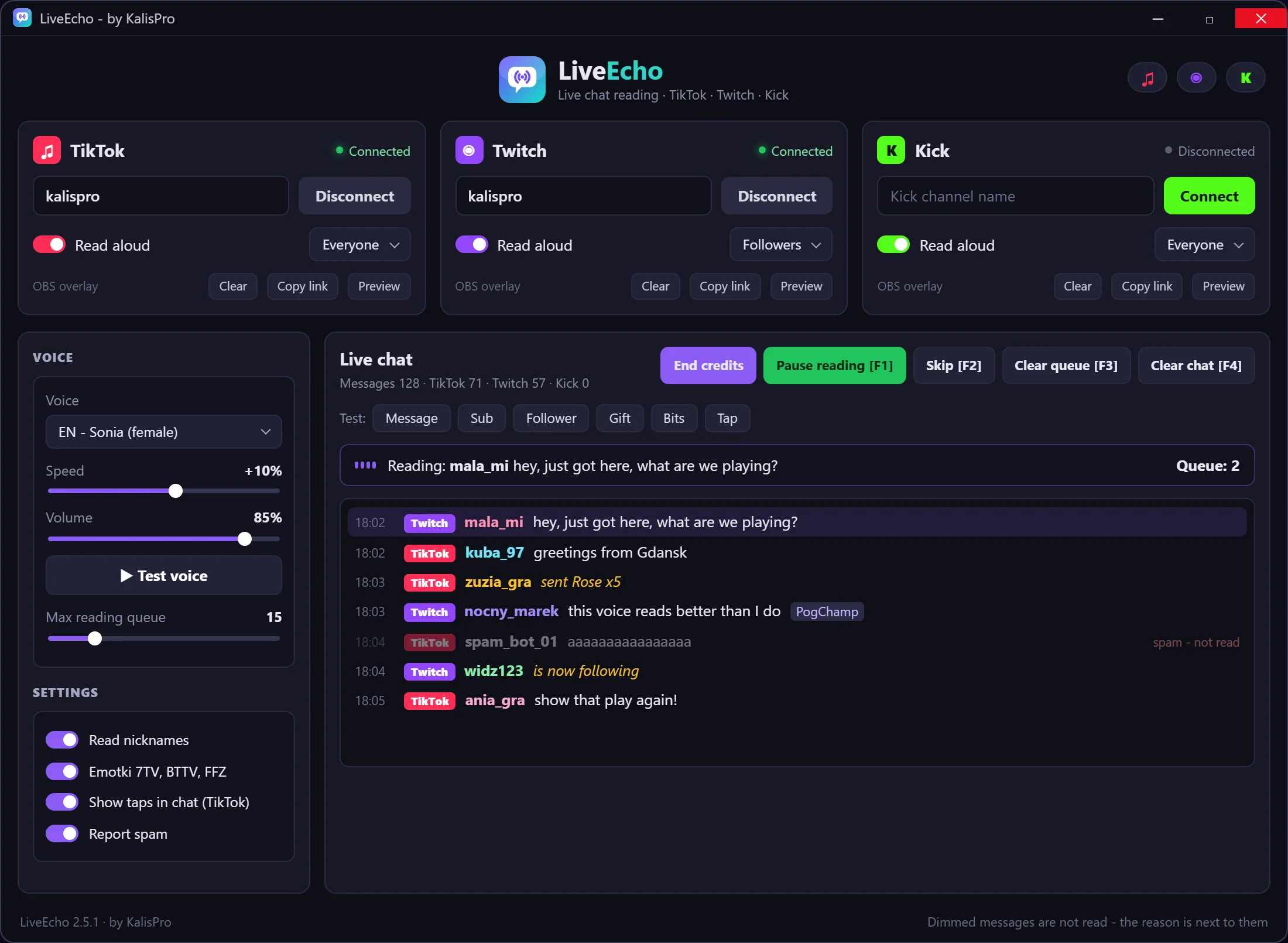
The LiveEcho interface is in Polish, so button names are given in Polish with English in brackets.
Step by step
- Connect LiveEcho to your TikTok, Twitch or Kick chat, as for reading chat out loud.
- Copy the credits link. The credits have their own “Kopiuj link” (copy link) button. The address points to your own PC, like the chat overlay.
- Add it to OBS. In a scene for the end of the stream click plus, choose Browser and paste the link. Make the source full screen, for example 1920 x 1080.
- Roll the credits. When you finish, switch to that scene and click “Napisy końcowe” (end credits) in LiveEcho.
Who appears in the credits
Viewers, subscribers, followers and gifts that LiveEcho saw during the stream. Nicknames are shown as on the platform, including decorative letters.
Streamlabs and XSplit
They work the same way: add a browser or web page source and paste the same link.
Common problems
The credits are empty
The list is built during the stream. Keep LiveEcho connected from the start, not only at the end.
The OBS source shows nothing
LiveEcho must be running on the same PC. If another program uses the port, change it in the LiveEcho settings and copy the new link.