 LiveEcho by KalisPro
Kick follows with usernames: LiveEcho, DogByte and Kick
Kick chat does not say who followed your channel. LiveEcho copes without any login: it watches your follower count and shows an alert when it goes up. Full usernames come from the DogByte bot, which gets follows straight from Kick. You set it up once, in a few minutes.
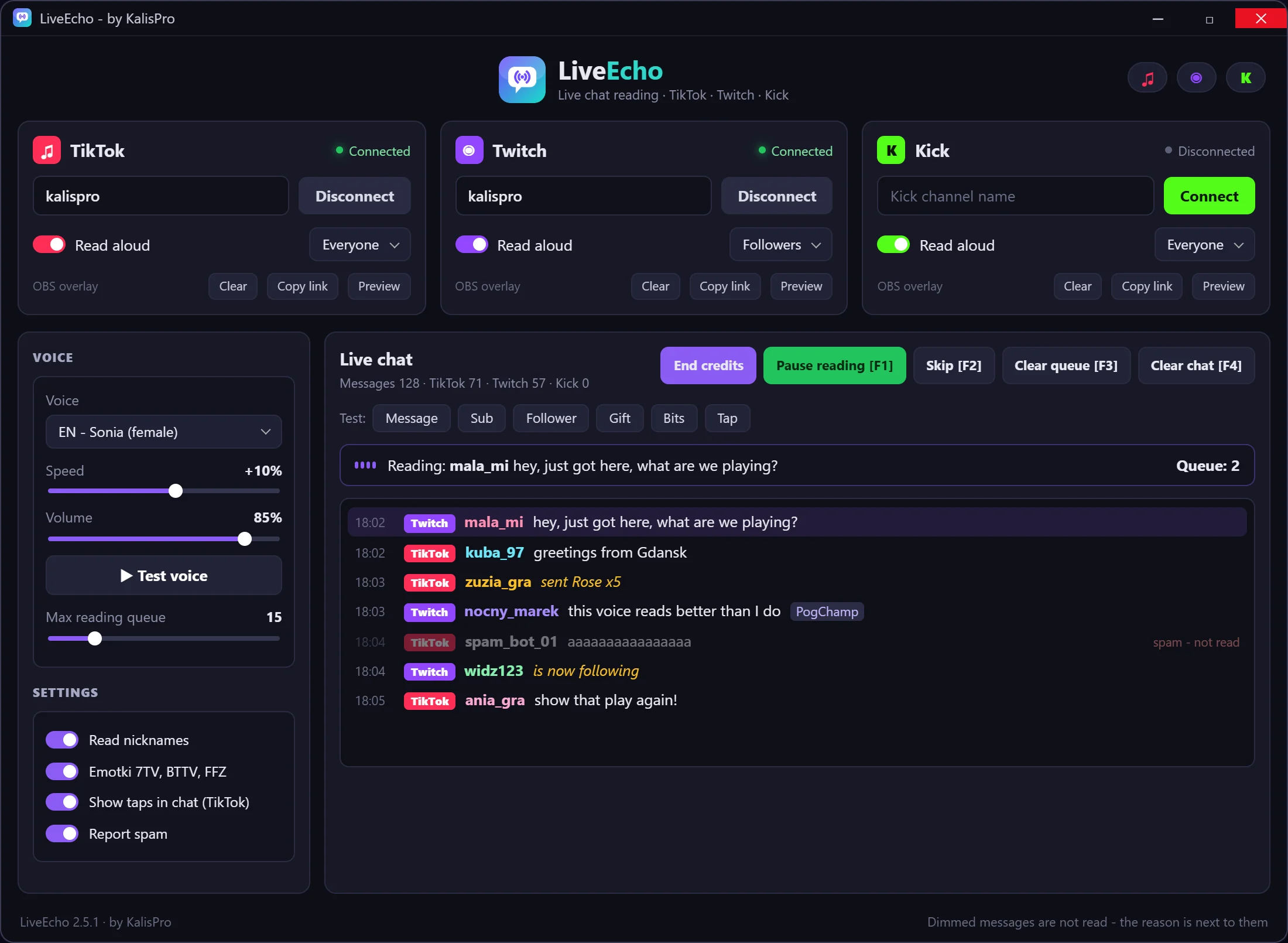
Without DogByte and with DogByte
- With nothing else. Every few seconds LiveEcho checks the public follower count of your channel. When it goes up, it checks the viewers who wrote in chat recently. Anyone who has just followed gets an alert with their username. The rest is a “New follower” or “3 new followers” alert, without a username.
- With DogByte. The bot gets every follow from Kick and passes the username to LiveEcho right away. The alert, the spoken thank-you and the end credits get the username of every new follower, also of those who never wrote anything.
What you need
- the latest LiveEcho,
- the DogByte bot on your Discord server and the Manage Server permission,
- the Kick account you stream from.
Step by step
- Connect LiveEcho with DogByte. In the DogByte dashboard, in the LiveEcho section, click Create code, and paste it in LiveEcho in Settings, card DogByte connection. The details are in LiveEcho and the DogByte Discord bot. If you already have a code, go on.
- Connect your Kick channel in the dashboard. In the DogByte dashboard open Chat bot (Twitch, Kick). If the module is off, turn it on with the switch at the top. In the Chat connection card click Connect your Kick channel and log in with the account you stream from.
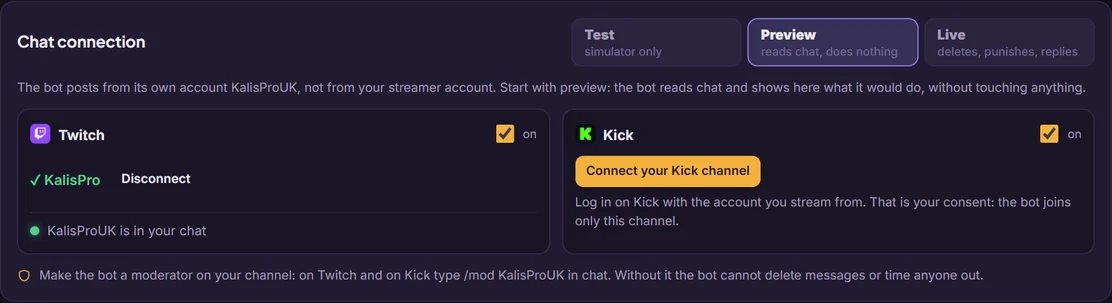
Chat bot in the DogByte dashboard: Connect your Kick channel (sample data). - The same channel in LiveEcho. On the Live screen type the same channel in the Kick card and click Connect. LiveEcho uses follows from DogByte only when the channels match.
- Check it. In LiveEcho Settings click Check in the DogByte connection card. The text should end with “Kick follows: channel "your_channel"”.
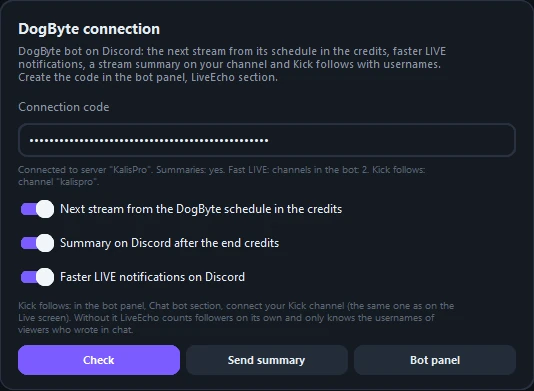
After Check: “Kick follows: channel …” at the end.
The bot does not have to write in your chat or be a moderator: for follows a connected channel is enough, even in Test mode. If you want DogByte to look after your chat too, see Chat bot for Twitch and Kick.
Where follows show up
- in the LiveEcho chat, as a yellow line with the Kick icon,
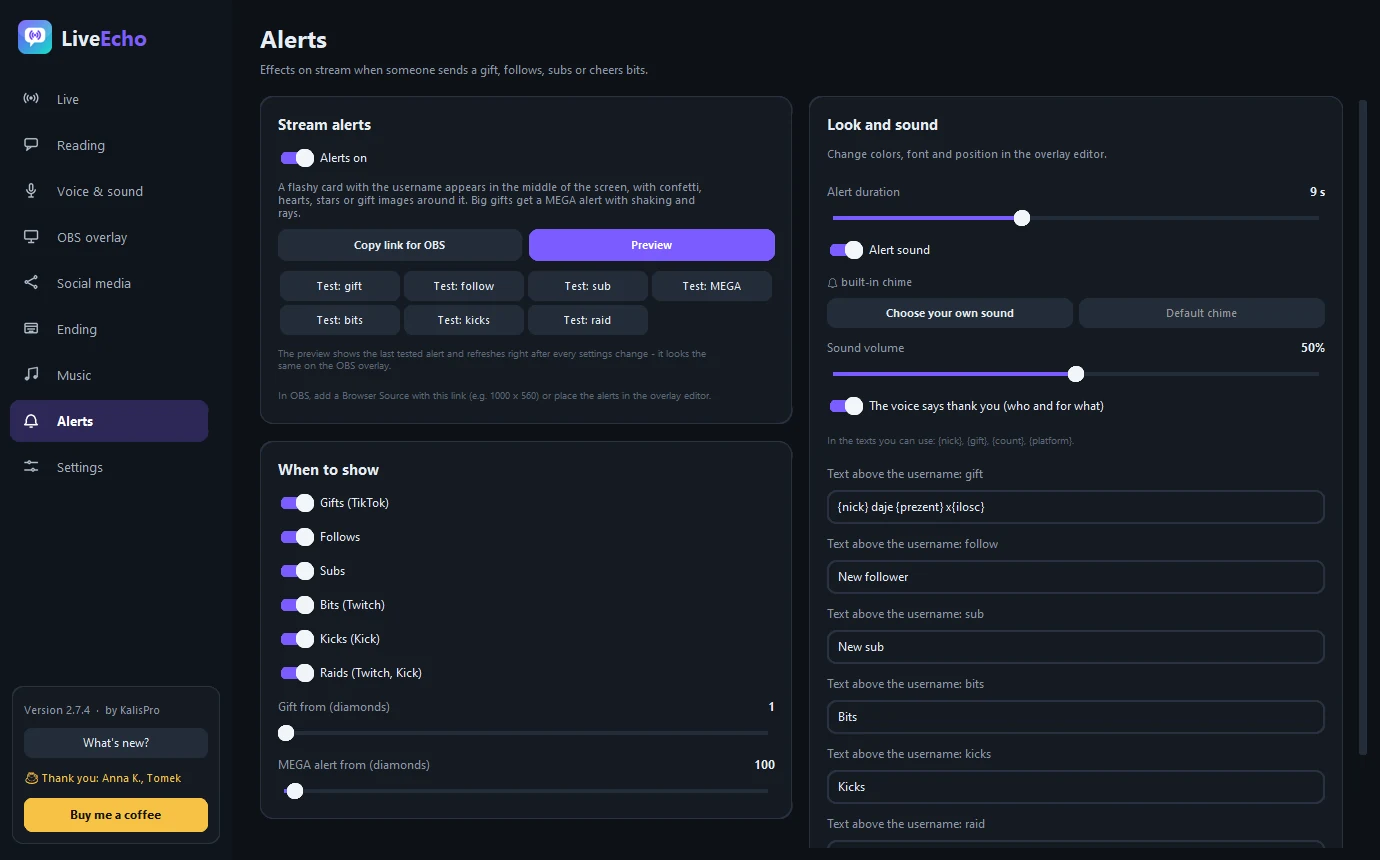
- on the alerts overlay in OBS, if follows are on in Alerts (see Stream alerts),
- in the spoken thank-you, for example “Thank you mala_mi for the follow!”,
- in the end credits and in the stream recap on Discord.
Common problems
“Kick follows: connect your Kick channel in the panel (Chat bot)”
The Kick channel is not connected in the Chat bot section. Do step 2.
“Kick follows: the bot has channel "…", but a different one is set here”
The dashboard has a different channel than LiveEcho. Fix the name on the Live screen or connect the right channel in the dashboard. Until then LiveEcho counts followers on its own.
Check says nothing about Kick follows
Your LiveEcho is older. The app offers the update itself on startup.
The alert comes, but without a username
That is how the counter works without DogByte. Check steps 2 to 4. Once connected, usernames show up from the next follow.