 LiveEcho by KalisPro
Stream alerts, a pop-out chat and the overlay editor
LiveEcho shows an alert in the middle of the stream when someone sends a gift, follows, subscribes, sends bits or kicks, or raids you: a card with the nickname, confetti and a sound if you want one. You can also pop the chat out into its own window that stays on top of your game, and arrange everything on one 1920 x 1080 scene.
The pictures show the English version of LiveEcho. If your app is in Polish, switch it in Ustawienia, card “Język / Language”.
Alerts in OBS
- Connect LiveEcho to your TikTok, Twitch or Kick chat, as for reading chat out loud.
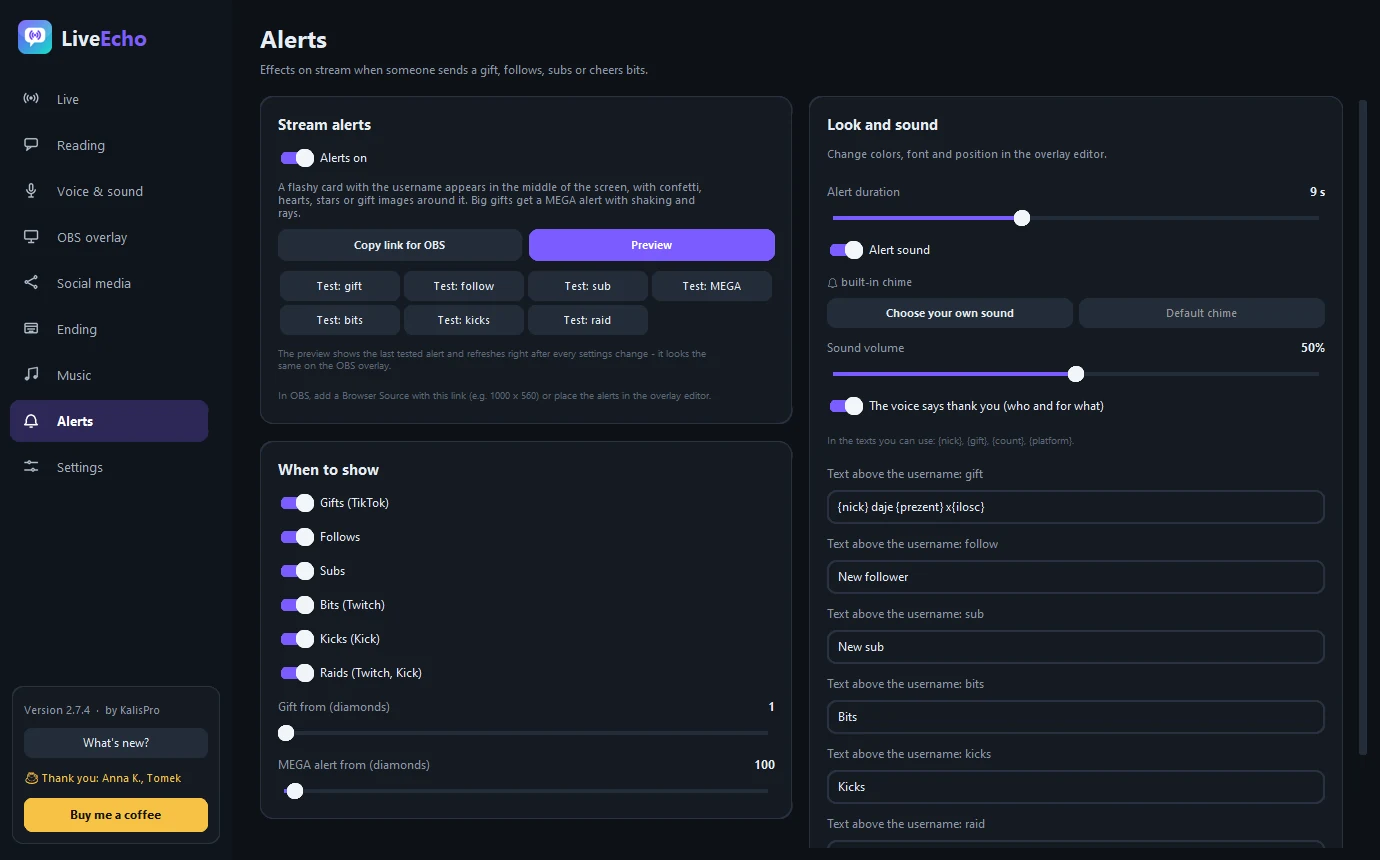
- Open the Alerts page and make sure the switch in Stream alerts is on.
- Copy the link. Click Copy link for OBS. The address points to your own PC.
- Add it to OBS. Click plus in your scene, choose Browser, paste the link and set the size, for example 1000 x 560.
- Test it. The Test buttons (gift, follow, sub, MEGA, bits, kicks, raid) show an alert on the overlay and in Preview, without a real stream.
What you can change
- When to show: gifts (TikTok), follows, subs, bits (Twitch), kicks (Kick) and raids (Twitch, Kick), each with its own switch.
- The smallest gift that gets an alert and the size from which a gift gets a MEGA alert with shaking and light rays, both in diamonds.
- How long an alert stays, its sound and volume, and a voice that thanks the person out loud.
- The text above the nickname for each kind of alert. You can use
{nick},{prezent}(gift),{ilosc}(amount) and{platforma}(platform).
Kick follows
Kick chat does not report follows, so LiveEcho watches your follower count and shows an alert when it goes up, with the username of anyone who wrote in chat. To get every username, connect LiveEcho with DogByte: Kick follows with usernames.
Chat in its own window
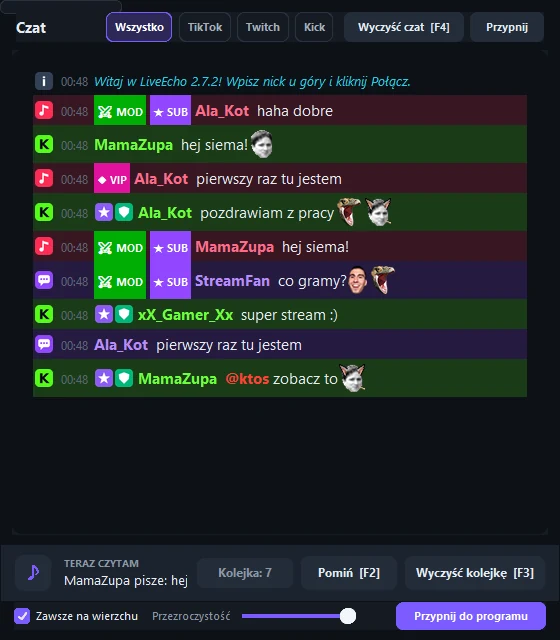
Click Pop out above the chat and it moves to its own window. Put it on a second screen or over your game: Always on top keeps it above other windows and Opacity lets the game show through. The filters for TikTok, Twitch and Kick and the shortcuts F2 (skip), F3 (clear the queue) and F4 (clear the chat) work there too. Dock to app puts the chat back. LiveEcho remembers where the window was.
Overlay editor: one link for OBS
On the OBS overlay page click Open editor. It opens in your browser with a 1920 x 1080 scene: drag the chat, the tap ranking, social media, music and credits where you want them and set fonts and colours. Then add a single browser source with the link from Copy scene link. Alerts can go on that scene too.
Do not add the same widget twice, for example in the scene and as its own source: only one of them will play.
Common problems
The test works, but real gifts show no alert
Check When to show and the smallest gift. On TikTok a gift below that value gets no alert.
The OBS source is empty
LiveEcho must be running on the same PC. If another program uses the port, change it in the settings and copy the link again.