 LiveEcho by KalisPro
Song requests by title with a free YouTube API key
With song requests your viewers type !play and a song in the TikTok, Twitch or Kick chat, and the song plays on your stream in a separate OBS source. A YouTube link always works. To let viewers type just the title, LiveEcho needs a free YouTube Data API key from Google. It takes about five minutes and you do it once.
The pictures from Google Cloud show the Polish version of the console, the buttons are in the same places in English.
Get a free YouTube API key
- Create a project. Open console.cloud.google.com/projectcreate and sign in with your Google account. Type a name, for example LiveEcho Music, and click Create. You don't need a card or a free trial.
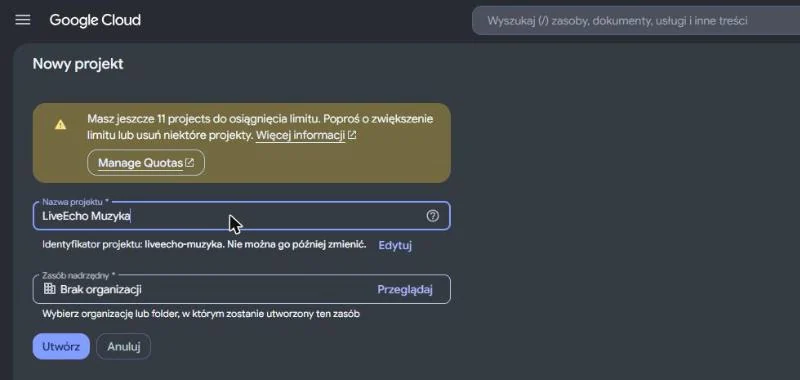
A new project in Google Cloud. - Enable YouTube Data API v3. Open YouTube Data API v3 in the API library, check that your new project is selected at the top and click Enable.
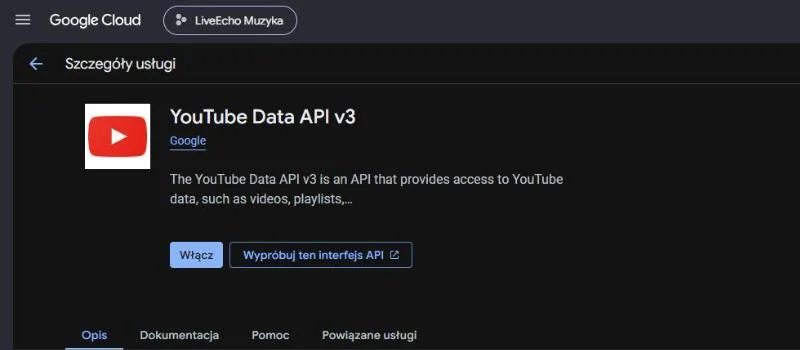
YouTube Data API v3: click Enable (Włącz). - Create a key. Go to APIs & Services → Credentials, click Create credentials and choose API key.
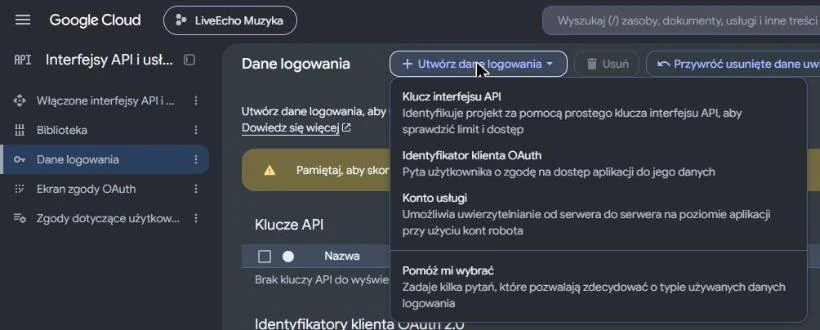
Credentials: Create credentials, then API key. - Limit the key to YouTube. Give the key a name, in API restrictions tick only YouTube Data API v3 and click Create. A key limited this way can't be used for anything else.
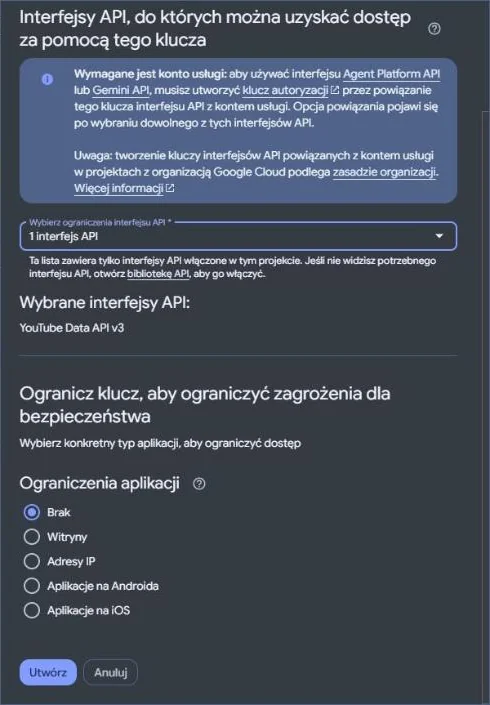
Only YouTube Data API v3 is ticked. - Copy the key. It starts with
AIzaand has 39 characters. Don't show it on stream and don't share it.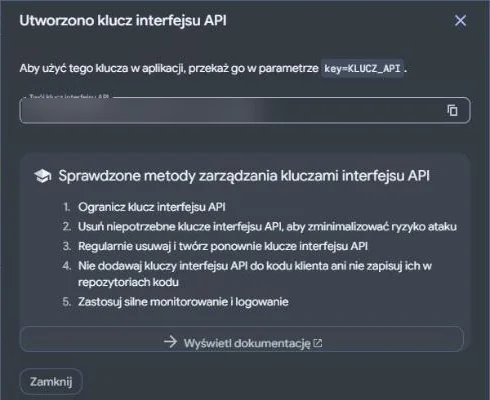
The key is ready: copy it with the button on the right (blurred here).
Paste the key in LiveEcho
- Open the Music page and turn on song requests.
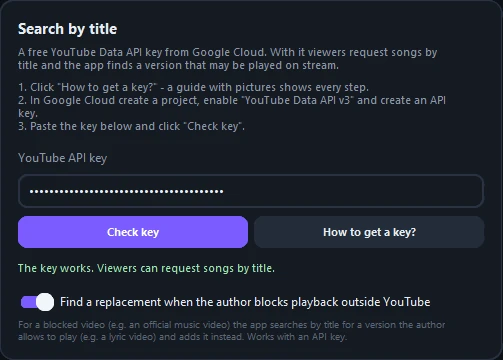
- In the Search by title card paste the key and click Check key. You should see "The key works".
- Click Copy link for OBS and add it in OBS as a Browser Source, for example 420 x 300. Tick Control audio via OBS to set the volume in the mixer.
- Test it: type
!play imagine dragons believerin your chat.
Without a key everything else still works: viewers request songs with a YouTube link or a video ID.
Songs the author blocks outside YouTube
Some videos may only be played on YouTube itself. LiveEcho checks this before a song joins the queue. With Find a replacement when the author blocks playback outside YouTube on (default), it searches for a version the author allows, for example a lyric video, and adds it instead. Nothing is bypassed: LiveEcho uses the official YouTube player and only plays videos YouTube allows to embed.
Only your playlist, breaks and songs for support
- Only songs from my playlist (off by default): paste a link to your public or unlisted YouTube playlist and click Load playlist. Viewers can then pick only songs from it, by title or link.
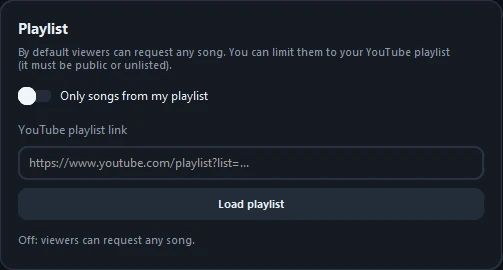
The Playlist card: off by default. - Break between one person's requests: how many minutes a viewer waits before the next song.
- Requests for support (off by default, requests are free): a viewer can request a song after a TikTok gift, Twitch bits or Kick kicks of the value you set, or after a sub. The host and moderators can always request.
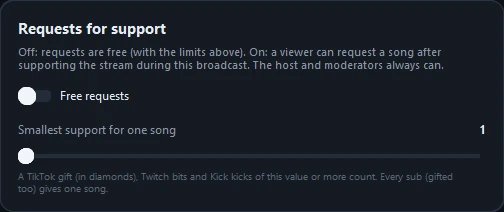
Requests for support: free by default.
How many songs a free key covers
A free key has 10,000 units a day. A song requested by title uses about 100, so roughly 100 title requests a day. A request with a link uses 1 unit. The limit resets every day at midnight Pacific time (around 9:00 in Poland).
Copyright
Playing copyrighted music on stream can get your VOD muted, a warning or a strike on Twitch, Kick or TikTok. Play music you have the rights to, for example copyright-free music. "Only songs from my playlist" helps you keep control.
Common problems
"The key doesn't work: YouTube Data API v3 is not enabled"
Go back to step 2 and click Enable in the same project the key comes from. It can take a few minutes to work.
"The key doesn't work: the YouTube API key is invalid"
Copy the key again from Credentials (Show key). It must start with AIza, without spaces.
Official music videos don't play in OBS
Copy the music link again with Copy link for OBS. It now starts with http://localhost: YouTube refuses many record label videos on a page with the address 127.0.0.1. LiveEcho 2.7.4 moves old links over by itself.